Continue Video Output When Closing Laptop Lid
While it is not always necessary to run laptop with lid closed and connect it to an external monitor screen, in most cases, the laptop is connected to the external monitor when closing the lid. In this article, we will discuss two things:
- How to connect the laptop to an external monitor along with audio output
- How to close laptop and use external monitor
When we connect to an external display, we normally use the external display as an extension to the laptop LCD. If it is not required and we only use an external display, it would be better to close the laptop lid to save power and extend the laptop battery.
Also check how to fix battery draining fast when the laptop lid is closed.
How to close laptop lid and use monitor without going to sleep or hibernate
After connecting your Windows laptop with the monitor, you would want to close the lid of your laptop but not let it shutdown as it will stop displaying everything on the monitor and furthermore it also helps you to save some battery on your laptop.
There are multiple ways to configure laptop lid settings. We will discuss three ways here. Please note that all the methods discussed below can be used for Windows 11 and Windows 10 and even Windows 8.1 and Windows 7.
How to close your laptop lid and use a monitor (Power Options)
You can configure the laptop lid close action settings in Power Options. Here's how to use a monitor with your laptop closed:
- Open Control Panel, go toHardware and Sound and select Power Options.
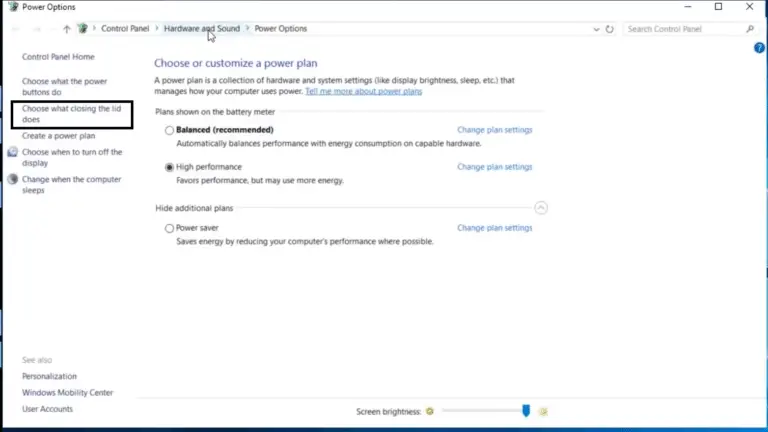
- From the left hand menu, select "Choose what closing the lid does". Power options for lid closing open.
- In the drop down options of "when I close the lid" select "Do nothing".

- Click Save changes button.
Now you can close the lid and still the display on the external display won't be disturbed and the system keeps on running. This is the easiest way to run a laptop with lid closed.
Once this setting is configured, your monitor will not shut off when you close the laptop lid. The laptop will not go to sleep when you close its lid.
How to close your laptop lid and use a monitor (Command Line)
You can also set the lid close action to "do nothing" using Command Prompt. Here's the command to set lid close action for using an external monitor:
Open cmd and run the following command if your laptop is plugged into the power socket.
powercfg /setacvalueindex scheme_current sub_buttons lidaction 0 Run the following command if your laptop is not charging (running on battery)
powercfg /setdcvalueindex scheme_current sub_buttons lidaction 0 You may change the integer value at the end of the command to the following for the associated action:
- 0 – Do nothing
- 1 – Sleep
- 2 – Hibernate
- 3 – Shut down
Configure lid close action settings using a script
You can also use a pre-configured script to change the actions for closing your laptop's lid instantaneously. The script was created and then shared on Microsoft Technet Gallery for the public to use.
This is especially useful for the people who frequently like to change between their settings, such as sometimes putting their computer to sleep by closing their lids and sometimes letting it run.
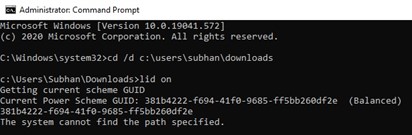
- Download the script and place the file in a location you can easily access using Command Prompt.
- Open Command Prompt as an Administrator and change the directory to where the script is placed.
- Now enter either of the commands to change the action to close the lid:
- To configure the action to "do nothing" upon closing the lid, enter:
lid on
- To configure the action to "Sleep" upon closing the lid, enter:
lid off

- To configure the action to "do nothing" upon closing the lid, enter:
Here are a few more settings related to laptop lid closing action:
- Connect the laptop to an external monitor
- Change display settings to enable 2nd display
- Adjust audio settings according to the second screen monitor
Connect laptop to monitor as external display
To connect your laptop with the screen you need to have a cable that connects the laptop with the external monitor, this cable is called an HDMI cable. While you can also use other means to connect to an external display like VGA, DisplayPort and DVI port, HDMI is the most used digital port of all.
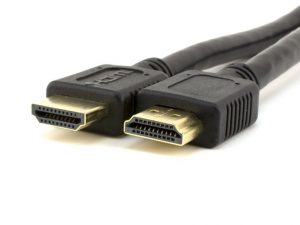
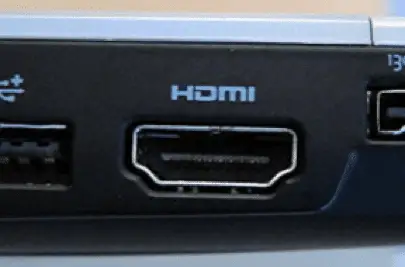
Both the monitor and the laptop need HDMI connector port. Just insert one side in your laptop and the other into the monitor and everything on your laptop is now displayed on the monitor as well.
Change Display Settings to enable second display
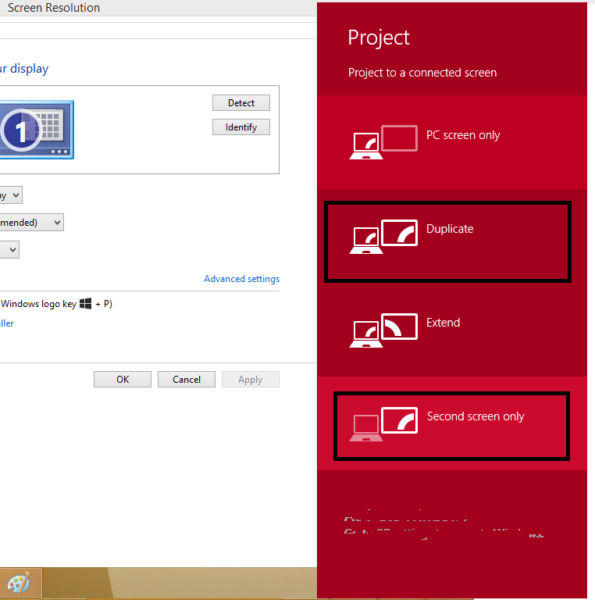
To make changes to the display, press Windows Key + P that will open the Project menu. You will see four options:
- PC Screen only
- Duplicate
- Extend
- Second screen only
All options are pretty self-explanatory. To connect to an external display and turn off the laptop display, you will select the fourth option "Second screen only".
Laptop screen is always the primary screen by default. It will be disabled when the second screen only option is selected.
Adjust the audio output settings for external monitor
The advantage of using HDMI is that you can also stream audio through the monitor device. For example, if you are connecting an LED TV, it will have the capability of streaming audio in addition to video from the laptop. Just follow the steps below to enable audio through HDMI device.
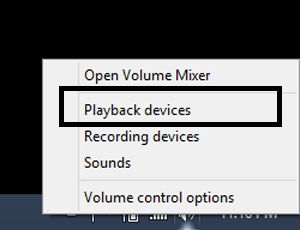
- Right-click the speaker icon on the task bar
- Select playback devices and a small window will appear with sound options
- Select Digital Audio HDMI
- Right click and click on set default.
Now you will get the sound from the monitor if it has a speaker or an audio/video peripheral.
You can also extend and use the second laptop screen as a monitor in Windows 10.
For me this option is very useful as I keep my laptop running all the time. I have selected to do nothing when I close the lid while the laptop is connected to the power source. This helps me save power as well as use external monitor, speakers, keyboard and mouse.
One thing to note here is that if you restart your Windows computer, it will detect and activate the primary screen which is the laptop screen. The secondary screen will automatically get activated and the laptop screen will be turned off on the logon screen. So if you have a broken laptop screen, it will be difficult to start the computer as the laptop will always detect its own LCD as the primary display and will try to activate it until the system is fully booted.
What do you do when you want to run the laptop with lid closed?
Also see:
Subscribe to our Newsletter
Get the latest tech news, advice and downloads in your inbox

Source: https://www.itechtics.com/run-laptop-with-lid-closed/
0 Response to "Continue Video Output When Closing Laptop Lid"
Post a Comment